
Internal Team Chat
Key Features
- Use the internal Team Chat to coordinate conversations between your team members within Alive5.
- Chat rooms are available for each Channel, and also as a direct message between two team members.
- Easily check the availability of a Channel by looking at who's online with that Channel.
Tutorial
Feature Overview
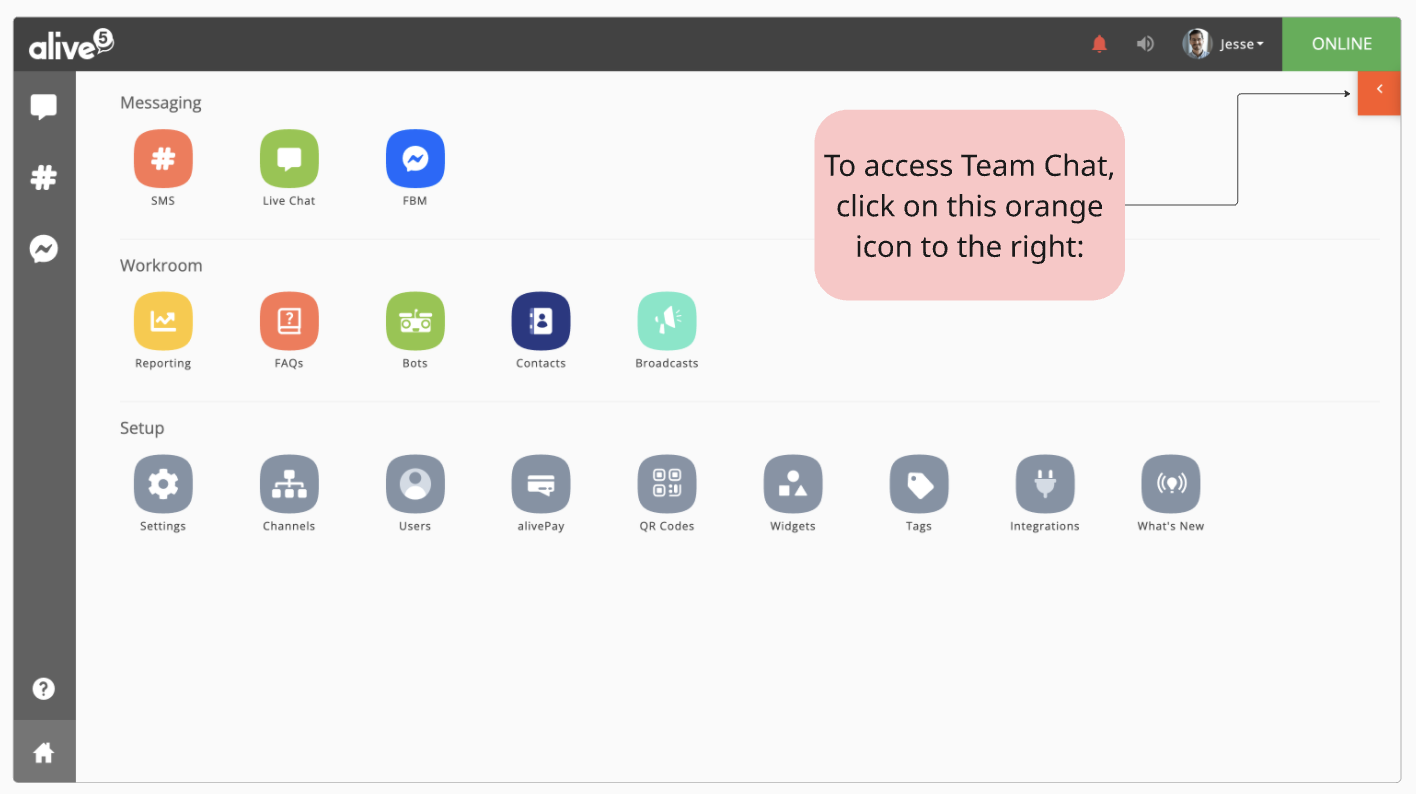
Team chat is available for all users (Admins and Agents) in Alive5. By clicking on the orange icon to the right, a side panel will pop out:
Channel and User Listing
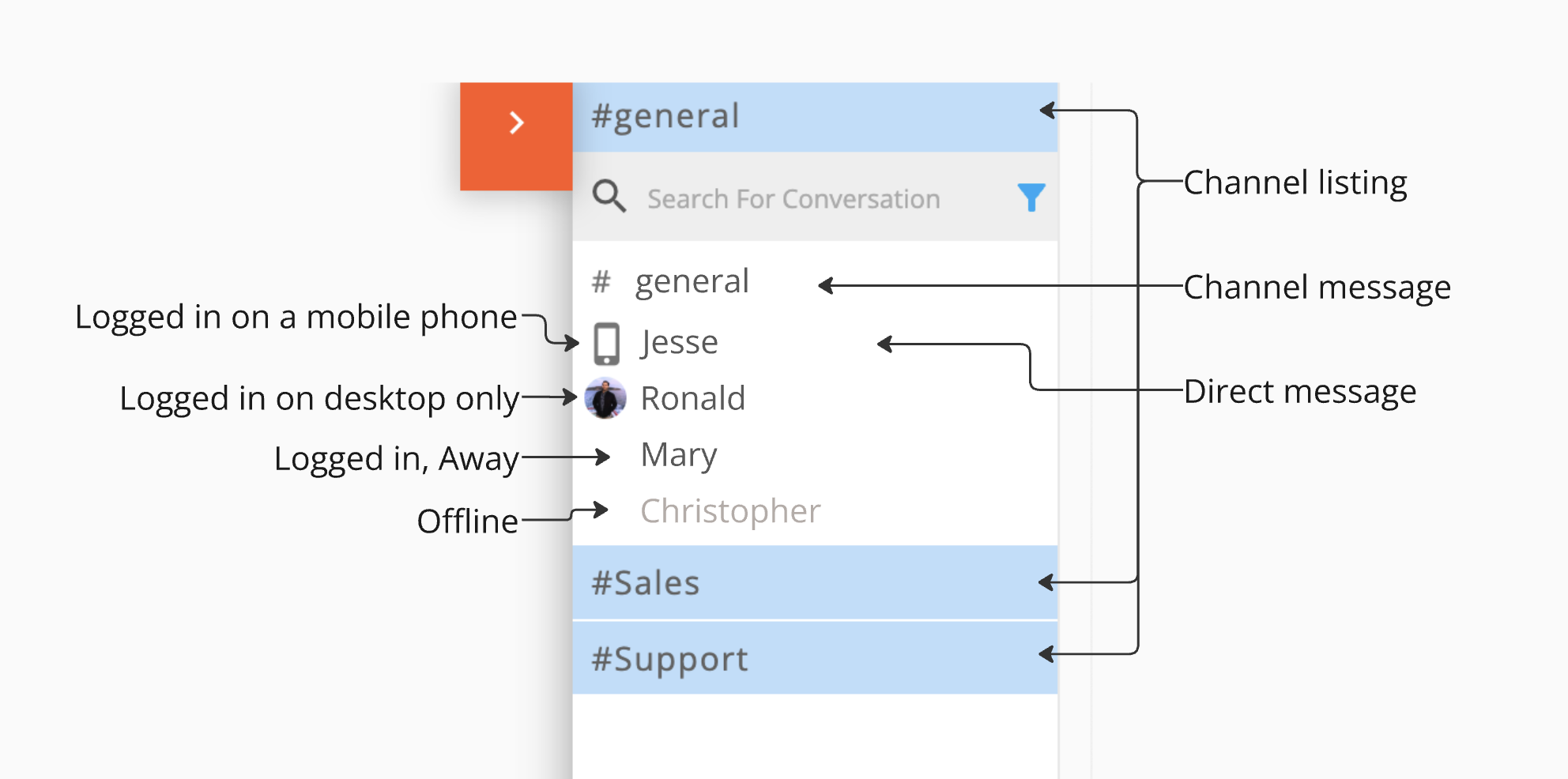
Users are grouped by Channels (the blue bar separates each Channel). The first Channel is #general. The ‘General’ Channel contains all Alive5 Users (Admins and Agent) in your organization. Sending a message to this Channel will be seen by ALL users in your account. Any user in your Alive5 account will also be able to reply to the Channel message and be seen by all logged in Users.
User Status
By expanding the Channel listing, you’ll see which users are part of that channel, and which ones are online and available.
- Logged in on a mobile phone - logged into a mobile phone (or Desktop) and Online (ready to chat).
- Logged in on desktop only - logged into a desktop browser and Online (ready to chat).
- Logged in, Away - logged into Alive5 (desktop or mobile), but in Away mode.
- Offline - not logged into Alive5 on desktop or mobile.
Channel Messages
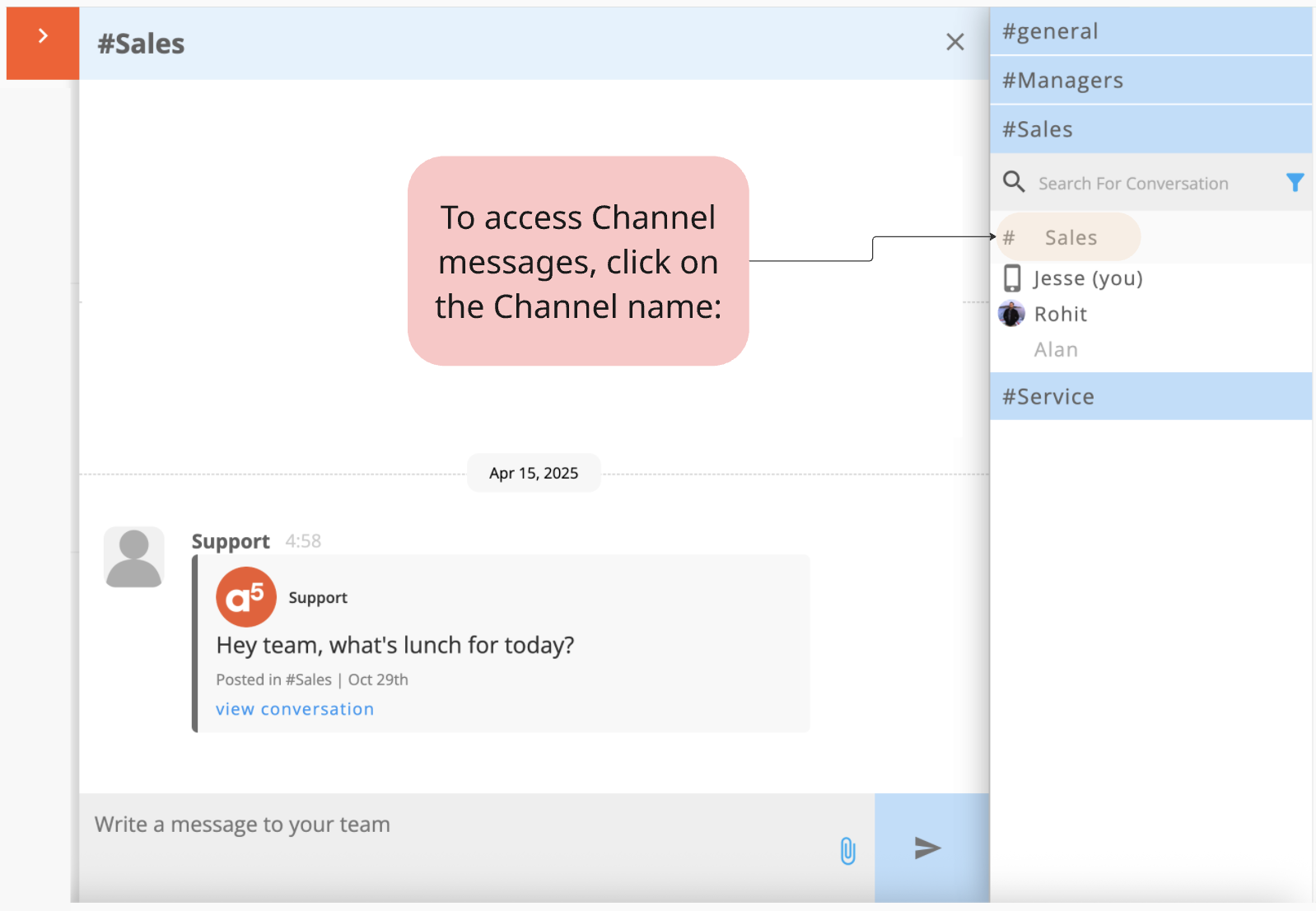
To send a message to all users who belong to a Channel, expand the Channel listing, then click on the Channel message row. Messages sent here are seen by everyone listed in the Channel.
Direct Messages
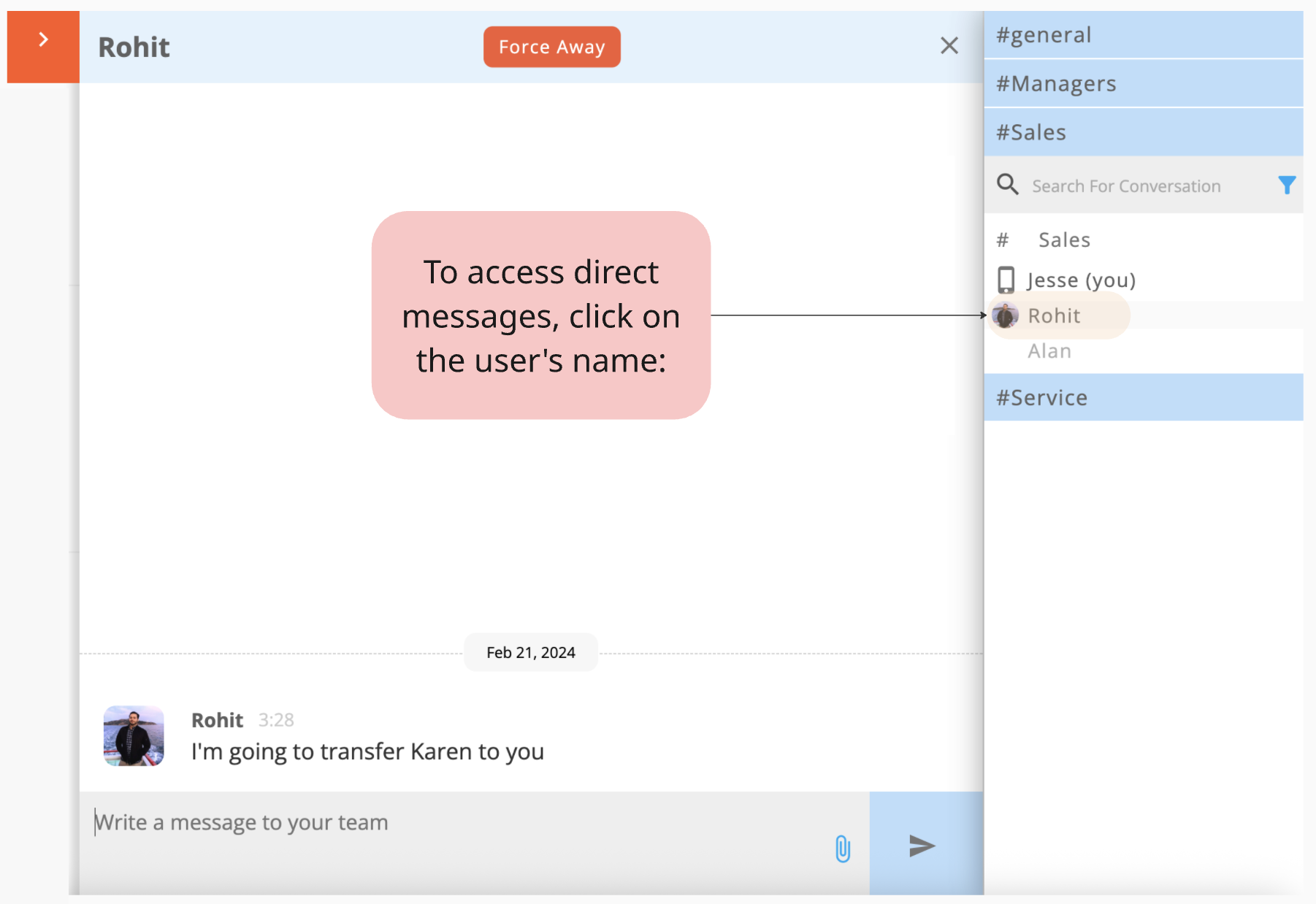
To send a direct message to a specific user, expand the Channel listing, then click on the user’s name and send a message. Messages sent here can only be seen by you and the other user.
Sub Threads
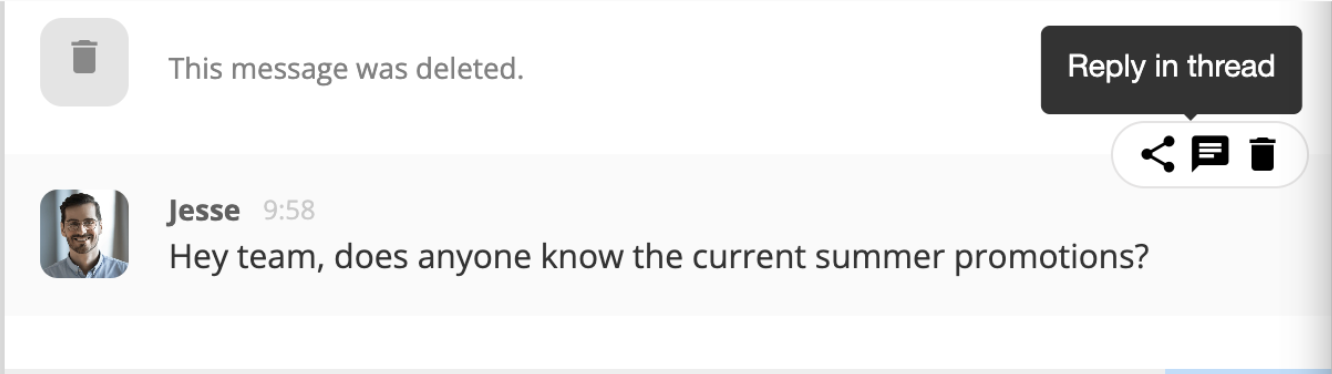
You can create a sub thread to an existing conversation by hovering over the message and 3 icons will appear. Clicking on the chat icon. A ‘Reply in thread’ pop up appears.
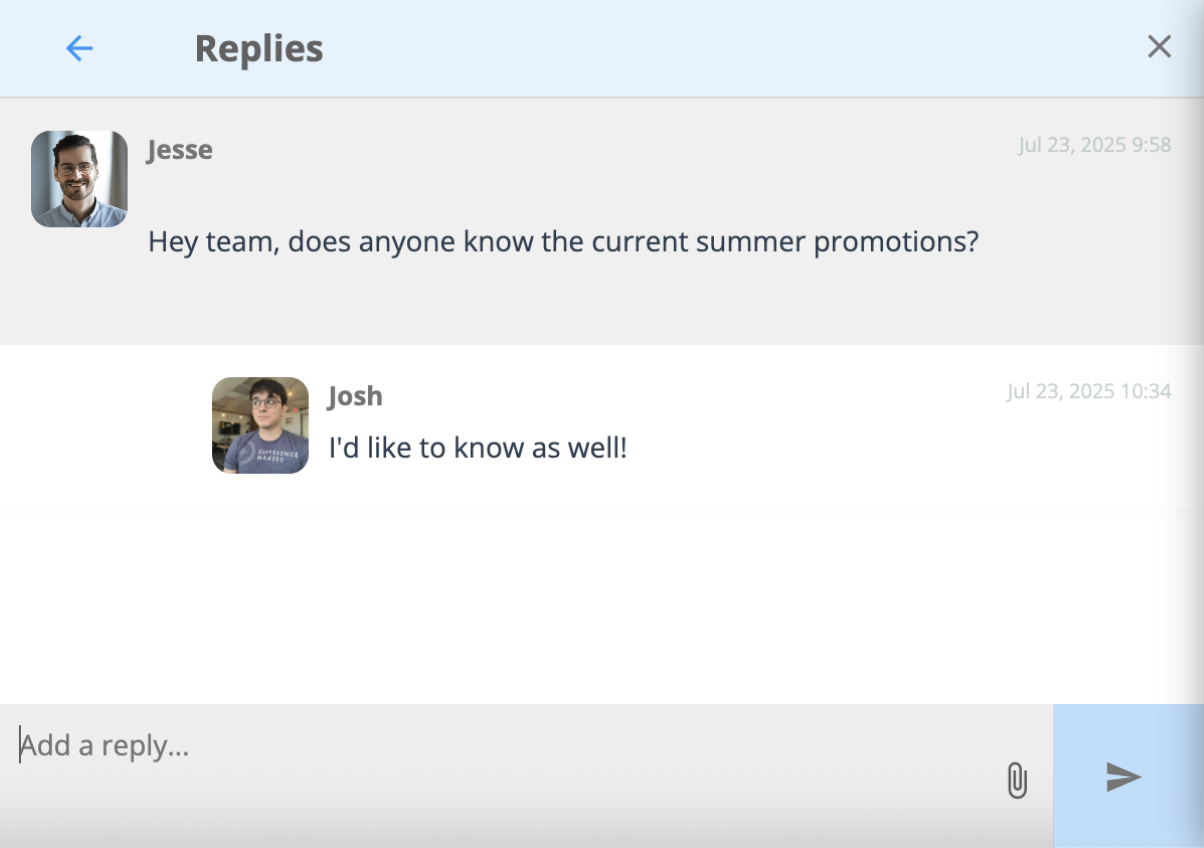
Once you’re in the sub-thread, you can write a message:
Sharing Chats Across Channels
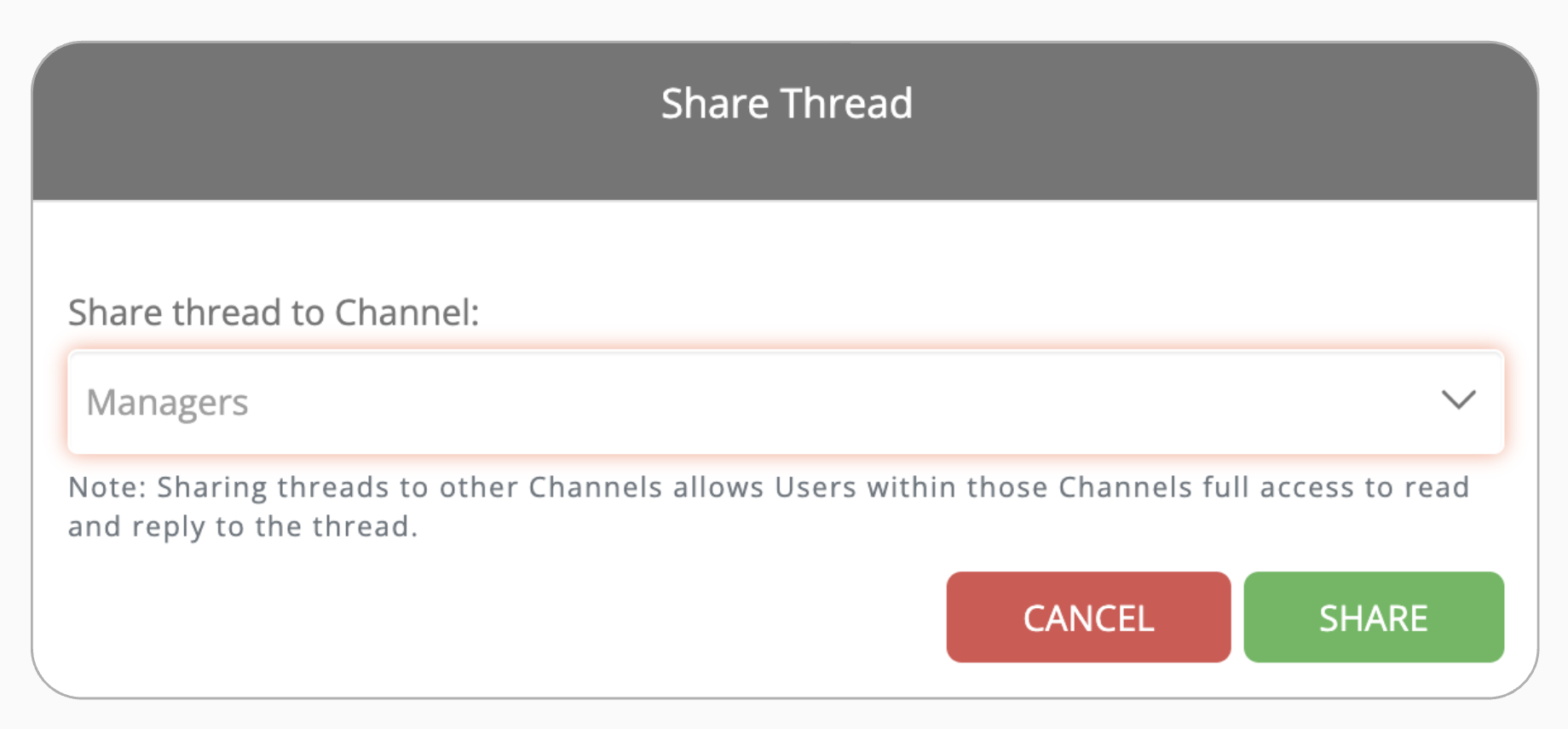
Conversation threads created in one channel can be shared to another channel. For example, if there’s a channel strictly with Admin users (Managers) and a channel with Agent users (Customer Support queue), a conversation in the Customer Support queue can be shared with the Managers Channel so that Managers can reply to a conversation not in their channel.
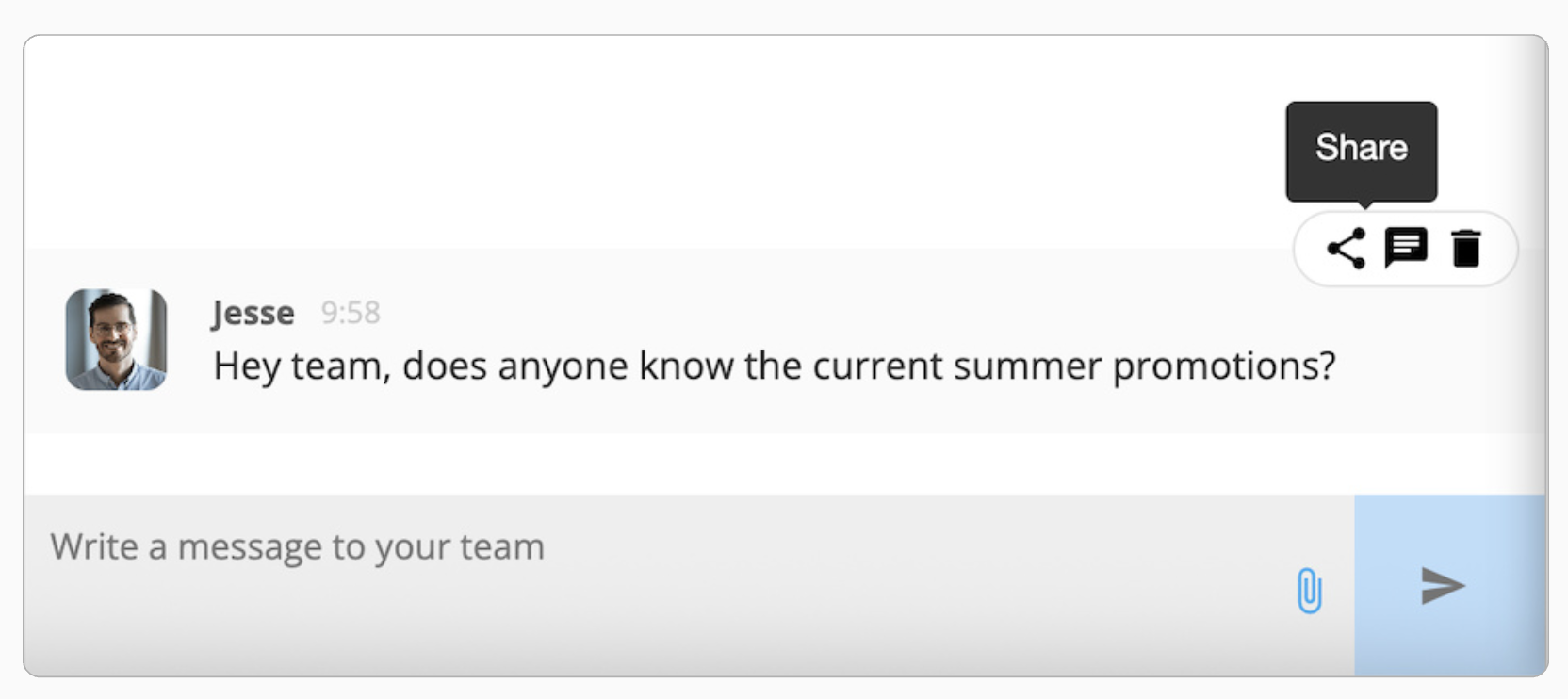
To share a conversation, hover over the message, and 3 icons will appear. Click on the sharing icon, with 3 dots:
A pop up will appear and let you choose a Channel:
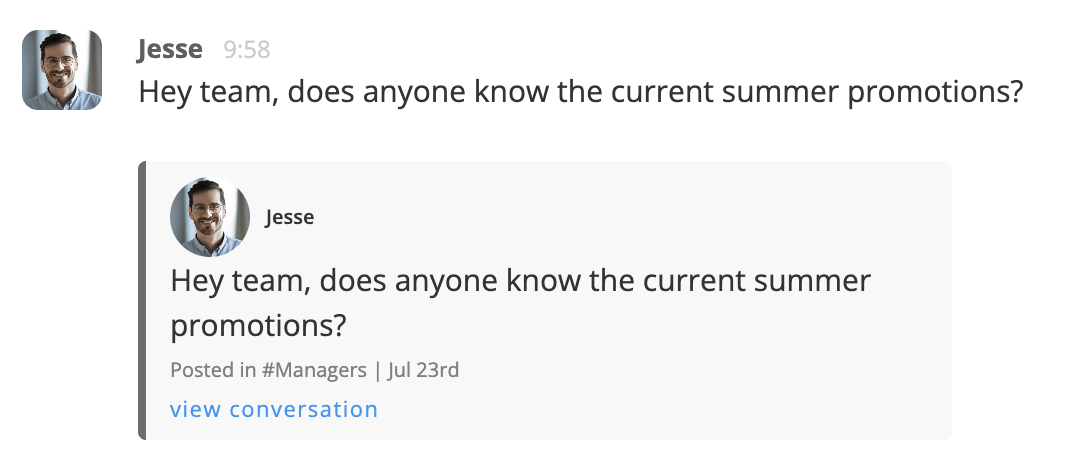
Once shared, if you go to the Channel it’s shared to, you’ll see the shared conversation appear. Clicking on ‘view conversation’ will allow you to interact.
Search Messages
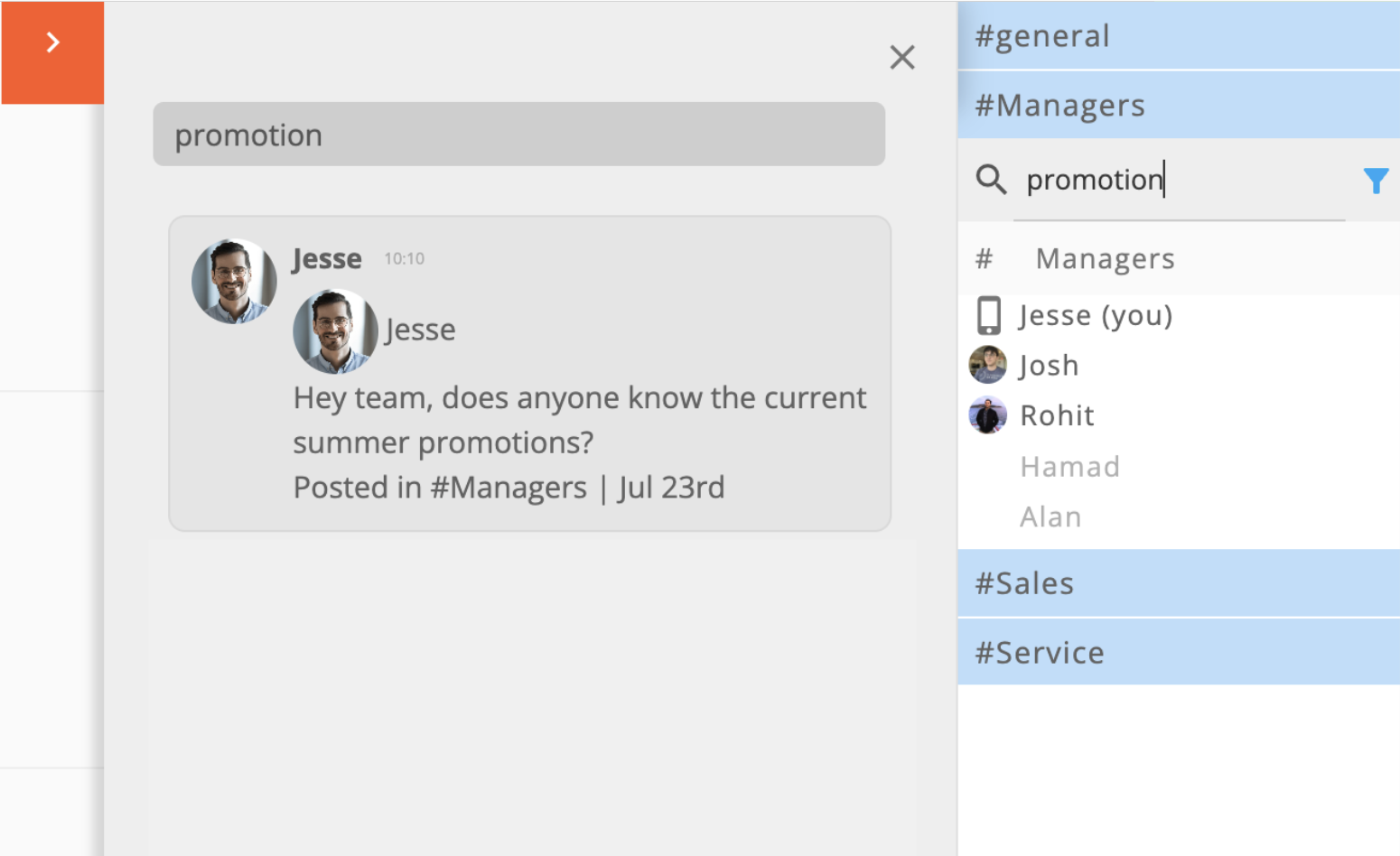
Under each Channel section, there’s a search bar. You can enter a text phrase to search any conversation under that Channel that has that phrase. Results are on the left, and clicking on a result will redirect you to the relevant conversation.
File Uploads
At the bottom right of every text area, there’s a paper clip icon which lets you upload a file to attach the a conversation:

Delete Messages
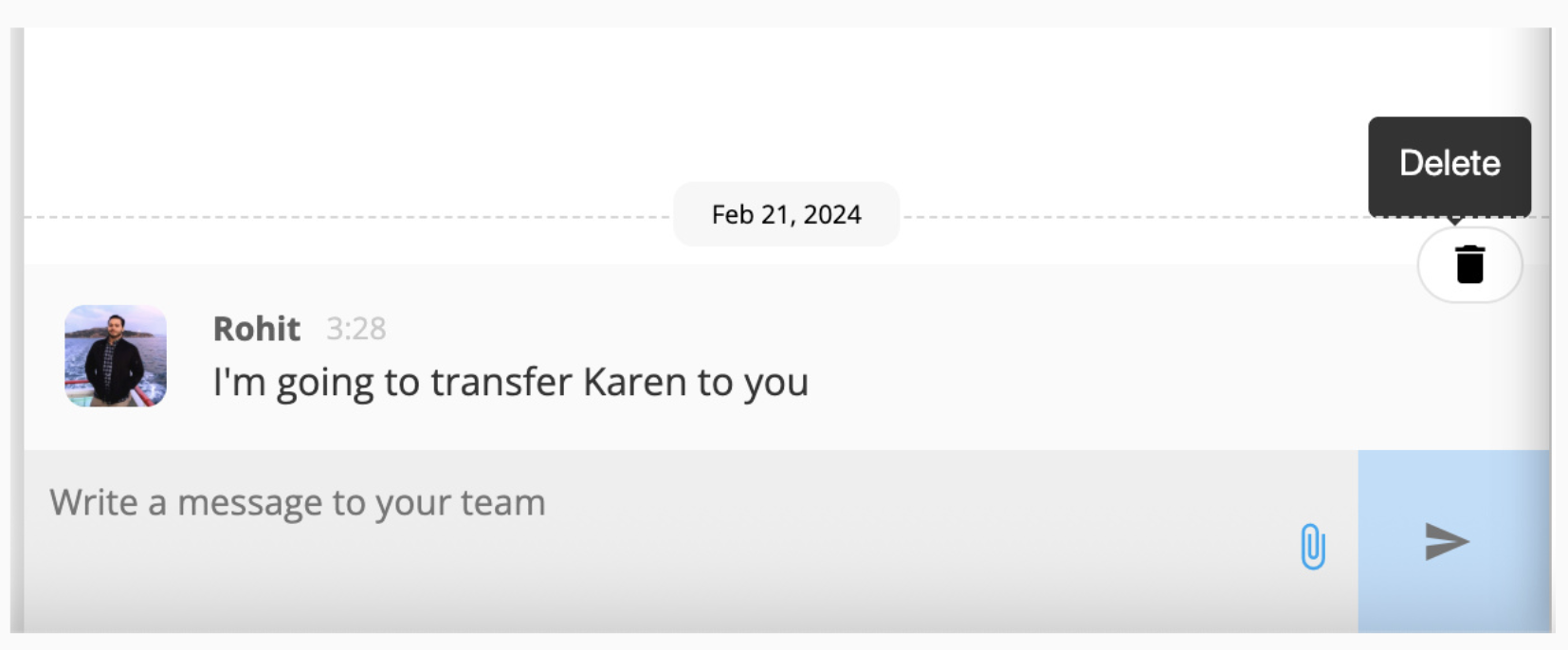
To delete any conversation, hover the message and click on the trash can icon to delete it:
Enabling a Channel for Team Chat
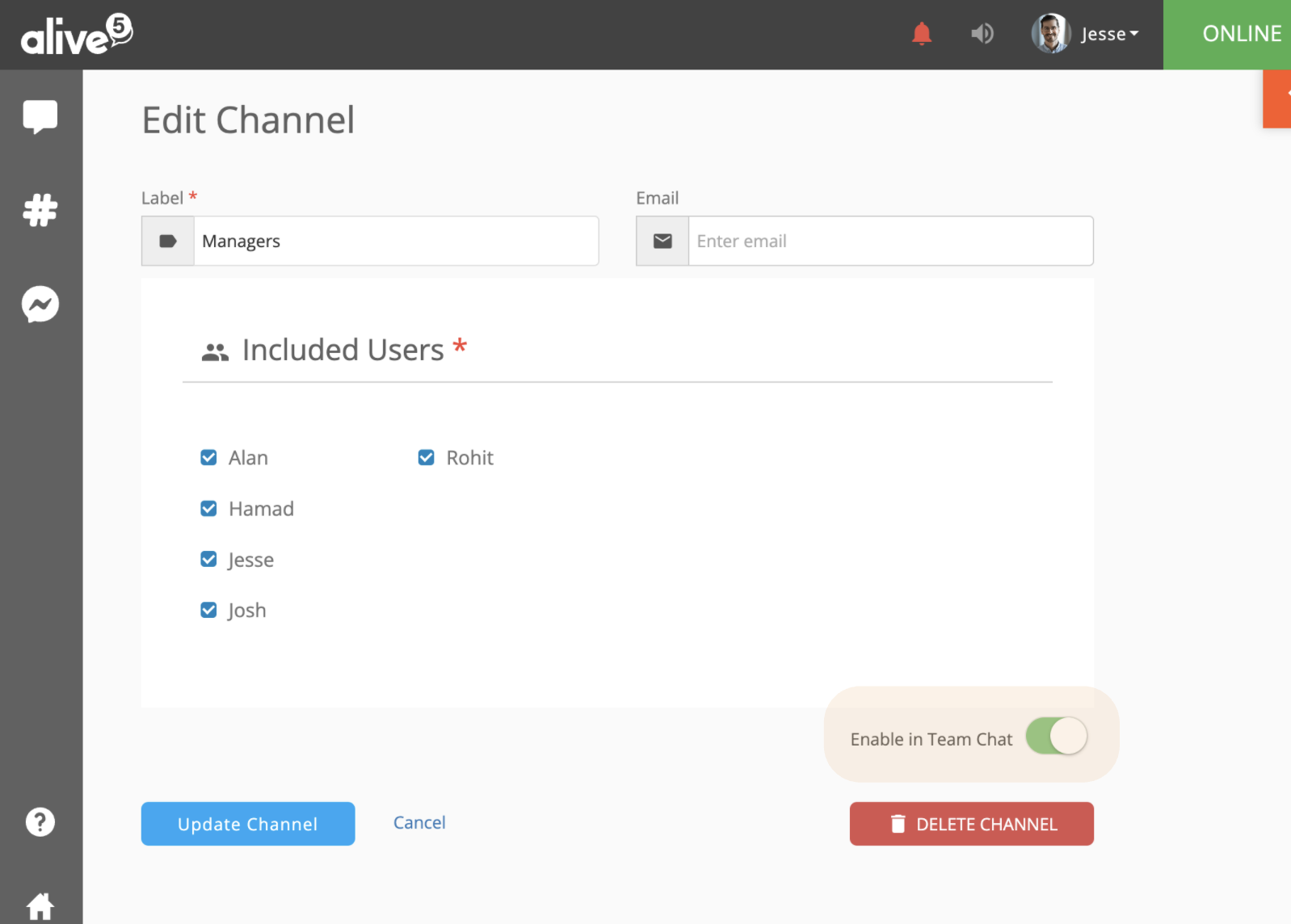
By default, only the “general” Channel appears in the Team Chat listing. To enable other Channels to appear, go to the Channel app:
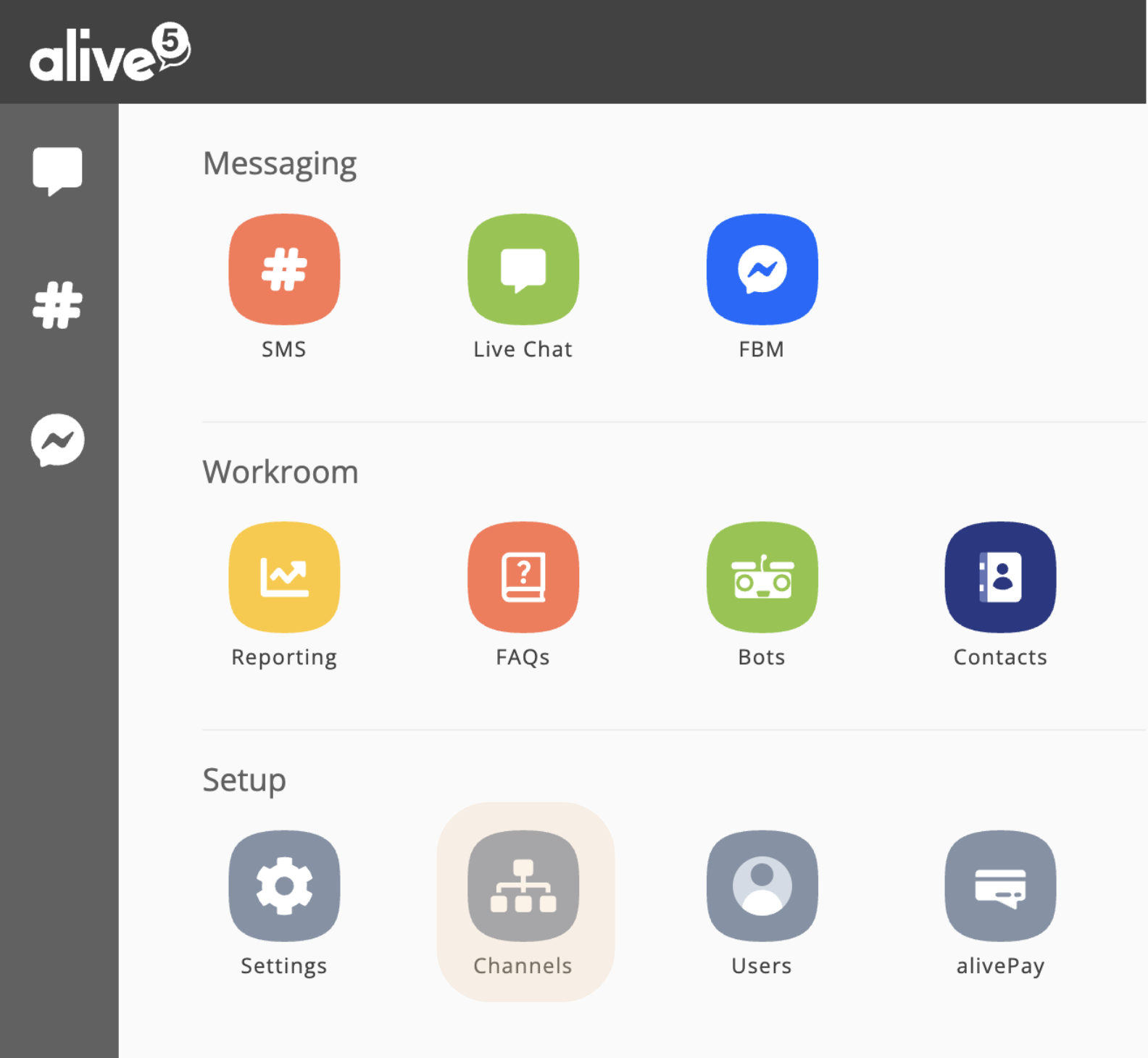
…edit the Channel, and toggle the setting “Enable in Team Chat”