

Updated October 28, 2026
Desktop & Mobile App
Alive5 uses your web browser's shortcut feature (Google Chrome, Microsoft Edge) to create a Desktop Shortcut that functions like a Desktop App, instead of offering a downloadable Windows EXE or Mac…
Install Desktop Shortcut
Alive5 uses your web browser's shortcut feature (Google Chrome, Microsoft Edge) to create a Desktop Shortcut that functions like a Desktop App, instead of offering a downloadable Windows EXE or Mac DMG.
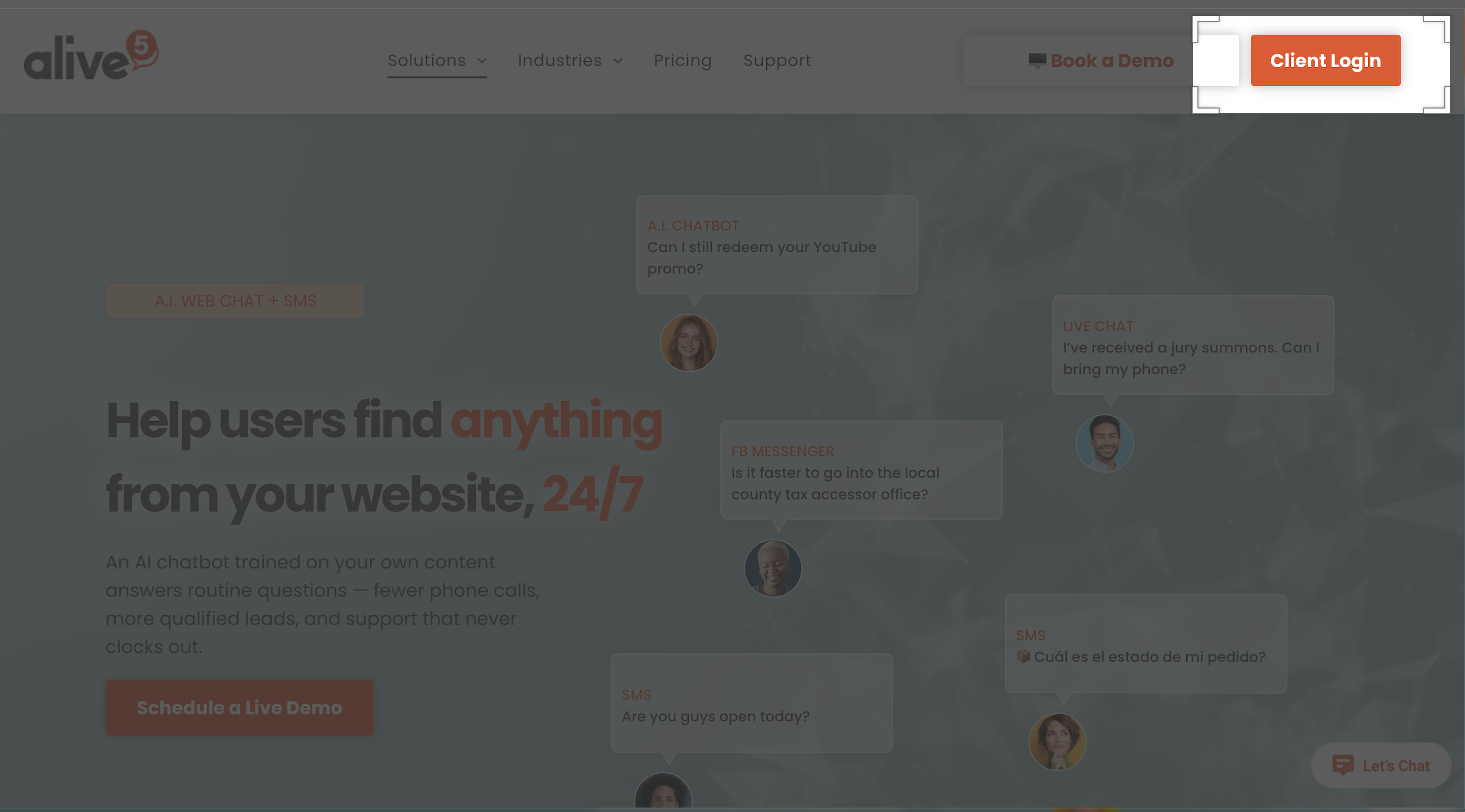
- Visit https://alive5.com and click on the Client Login at the top right. Log in with your credentials.
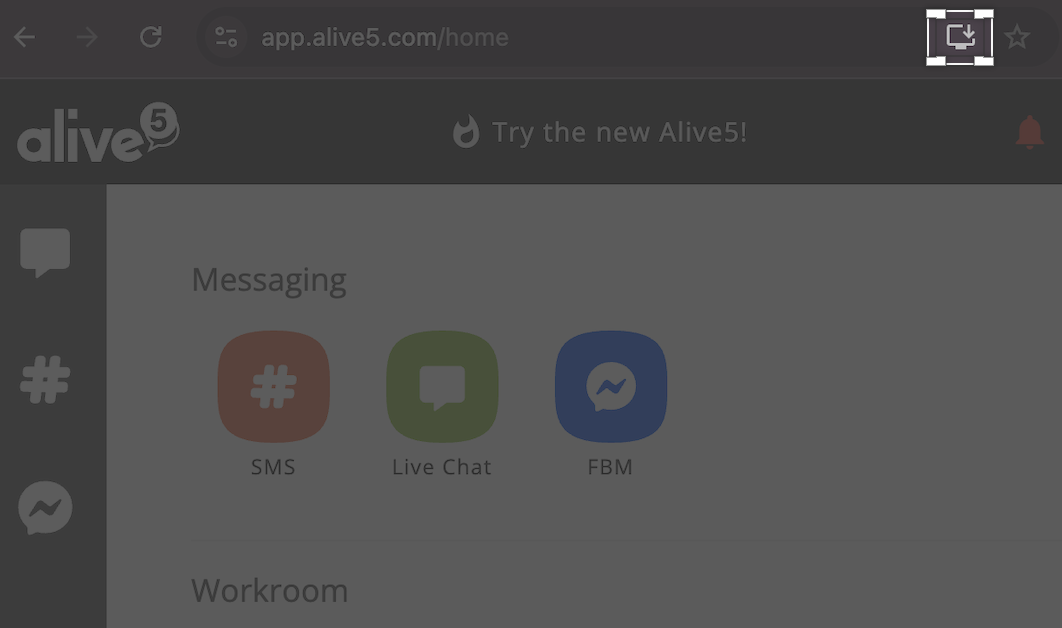
- Once you’ve logged in, you should see an icon to Install Alive5 in your address bar:
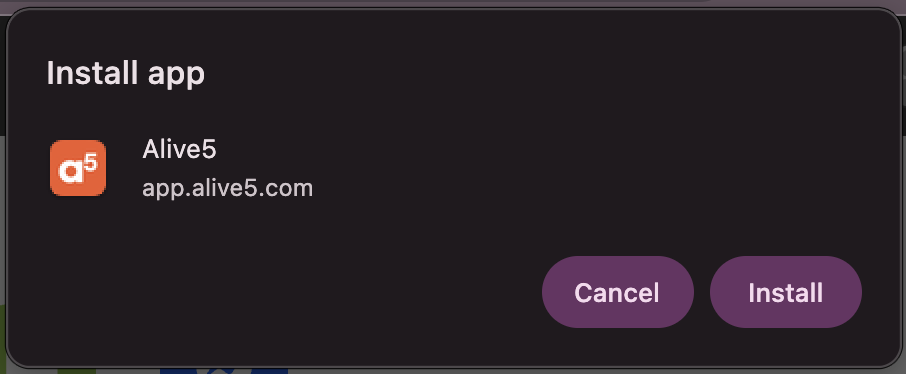
- Click Install:
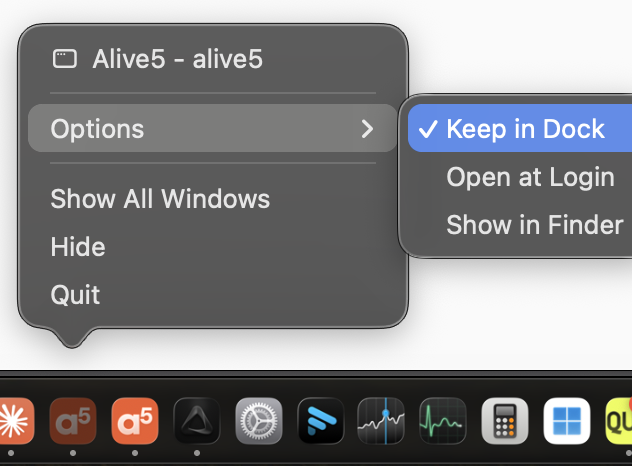
- At the bottom of your computer, an Alive5 icon should appear. Select option to Keep in Dock (for Mac, similarly for Windows):
- After the install, you won’t need to log in from your web browser, just click on the App Shortcut!
Mobile App Install
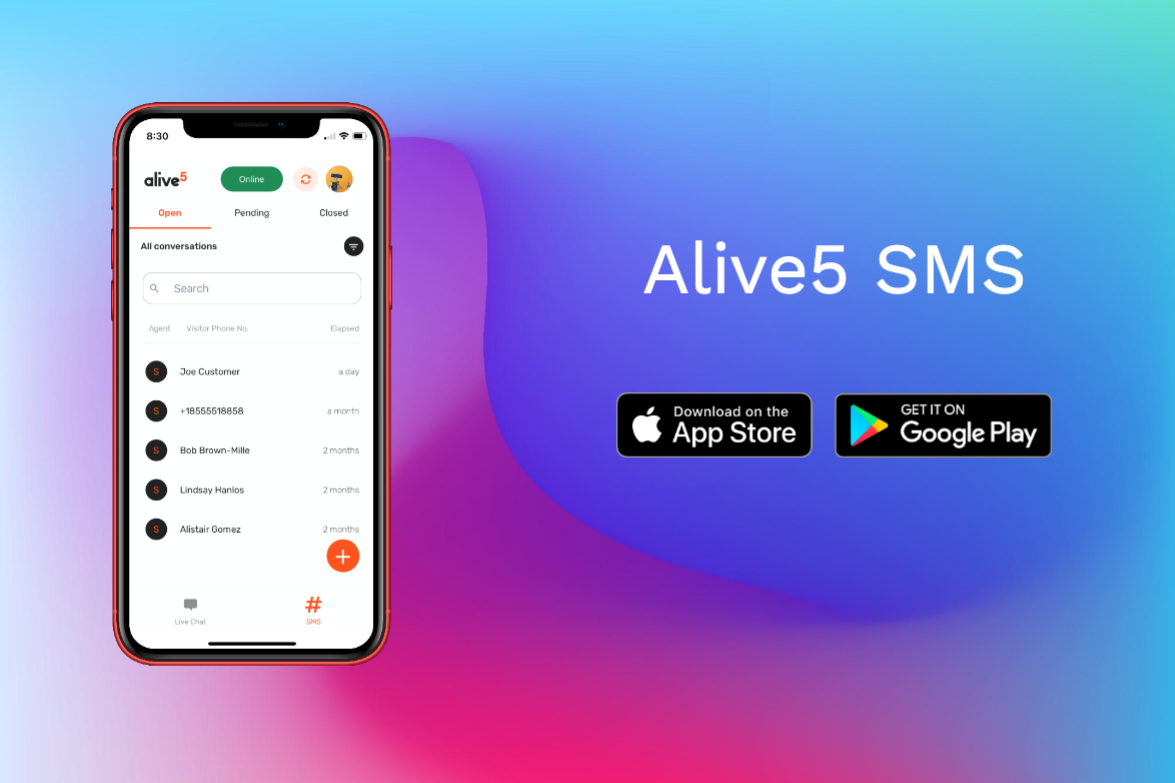
Apple iPhone / iOS
Receive chat requests and respond on the go with the Alive5 mobile app for Apple iPhone.
https://apps.apple.com/us/app/alive5/id1230065911
Google Android
Receive chat requests and respond on the go with the Alive5 mobile app for Google Play.
https://play.google.com/store/apps/details?id=com.alive5.mobileapp&hl=en_US&gl=US