

Troubleshooting Notifications
Missing Alive5 notifications for Live Chat, SMS, or Messenger? Follow these 5 steps to fix it.
1. Check your Alive5 notification settings
For SMS (Admin access only)
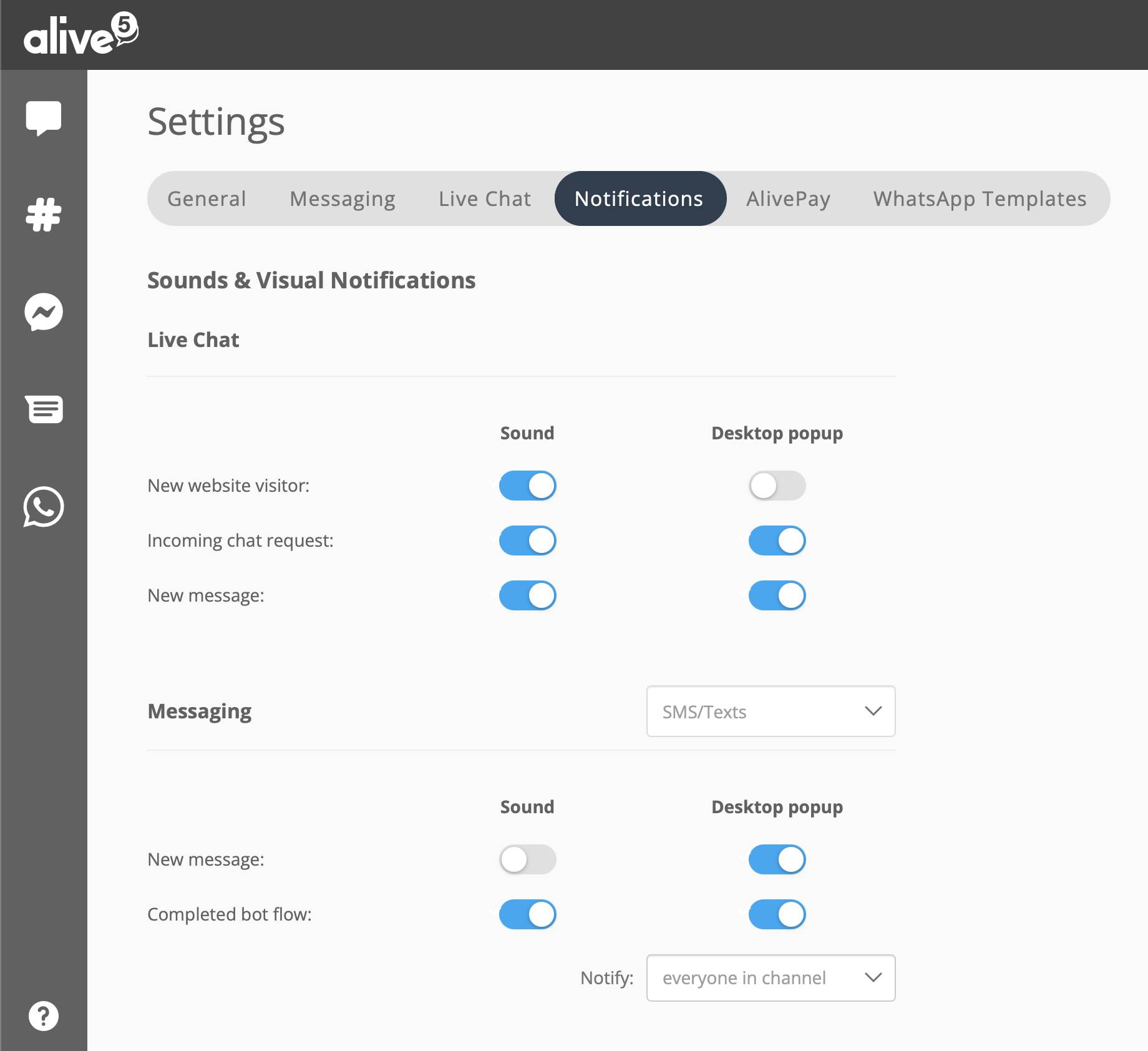
Be sure you have Live Chat & SMS notifications enabled under 'Settings & Visual Notifications'. Log into your alive5 account, and visit https://app.alive5.com/settings/notifications. You should see the options below - toggle the options ON for the sounds and popups you wish to see and hear:
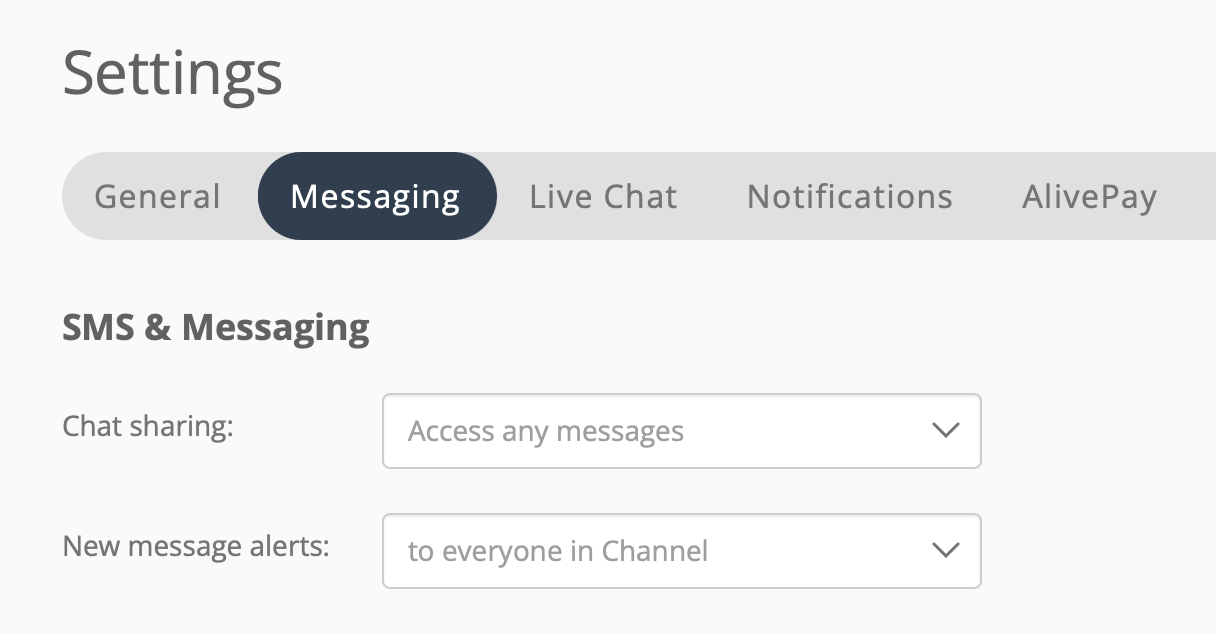
For SMS and social messaging (https://app.alive5.com/settings/messaging) note the Chat sharing and New message alerts.
- Chat sharing - if you have multiple users in a Channel and you want everyone to see messages (assigned or unassigned to a user), choose “Access any messages”. If you want to restrict visibility of a conversation only to the assigned user, choose “Access only assigned messages”.
- New message alerts - similar to Chat sharing, you can set up alerts to notify everyone or only the user assigned the conversation.
2. Install Chrome/Edge Desktop shortcut
If you are using the Google Chrome or Microsoft Edge browser, the Desktop App Shortcut allows you to run Alive5 without visiting our website to log in.
3. Check your Desktop computer settings
There's 2 main areas where you can configure pop up notifications.
Microsoft Windows Users
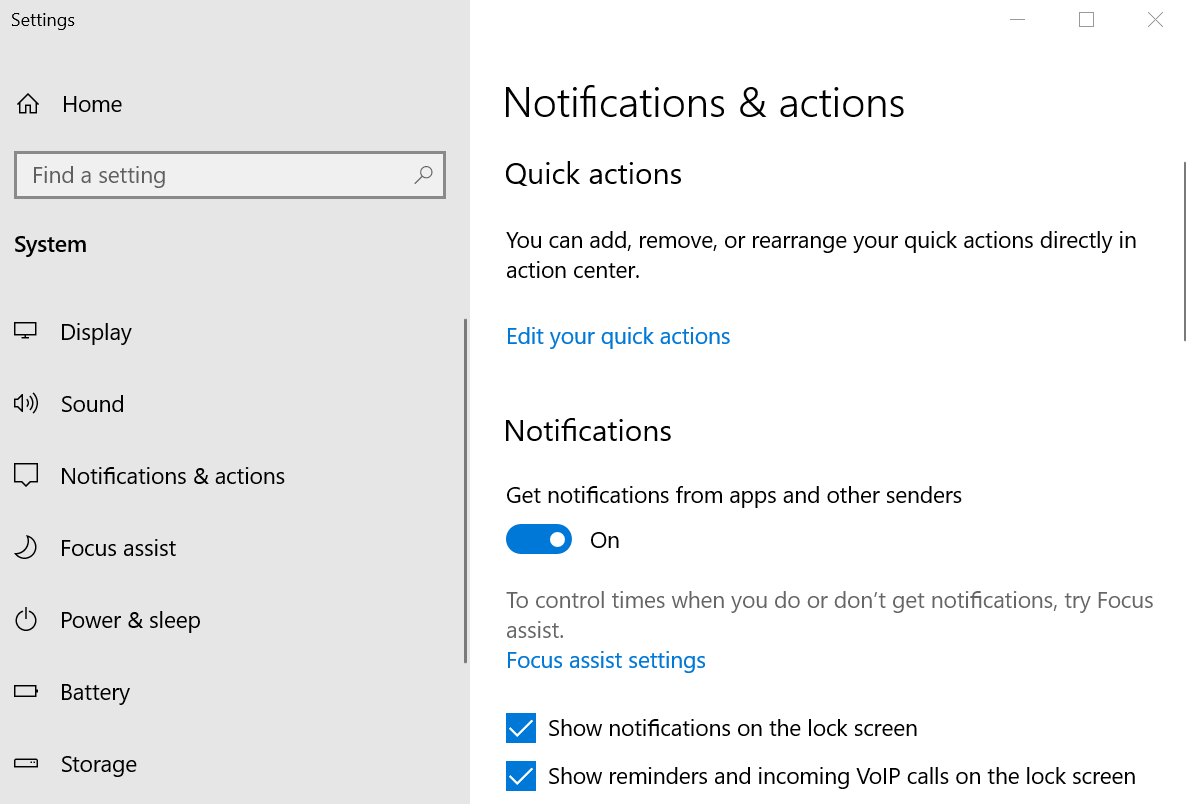
Click on the Windows icon and search for "Notifications" and the below panel will show up. Make sure " Get notifications from apps and other senders " is enabled.
For Mac OS/X users
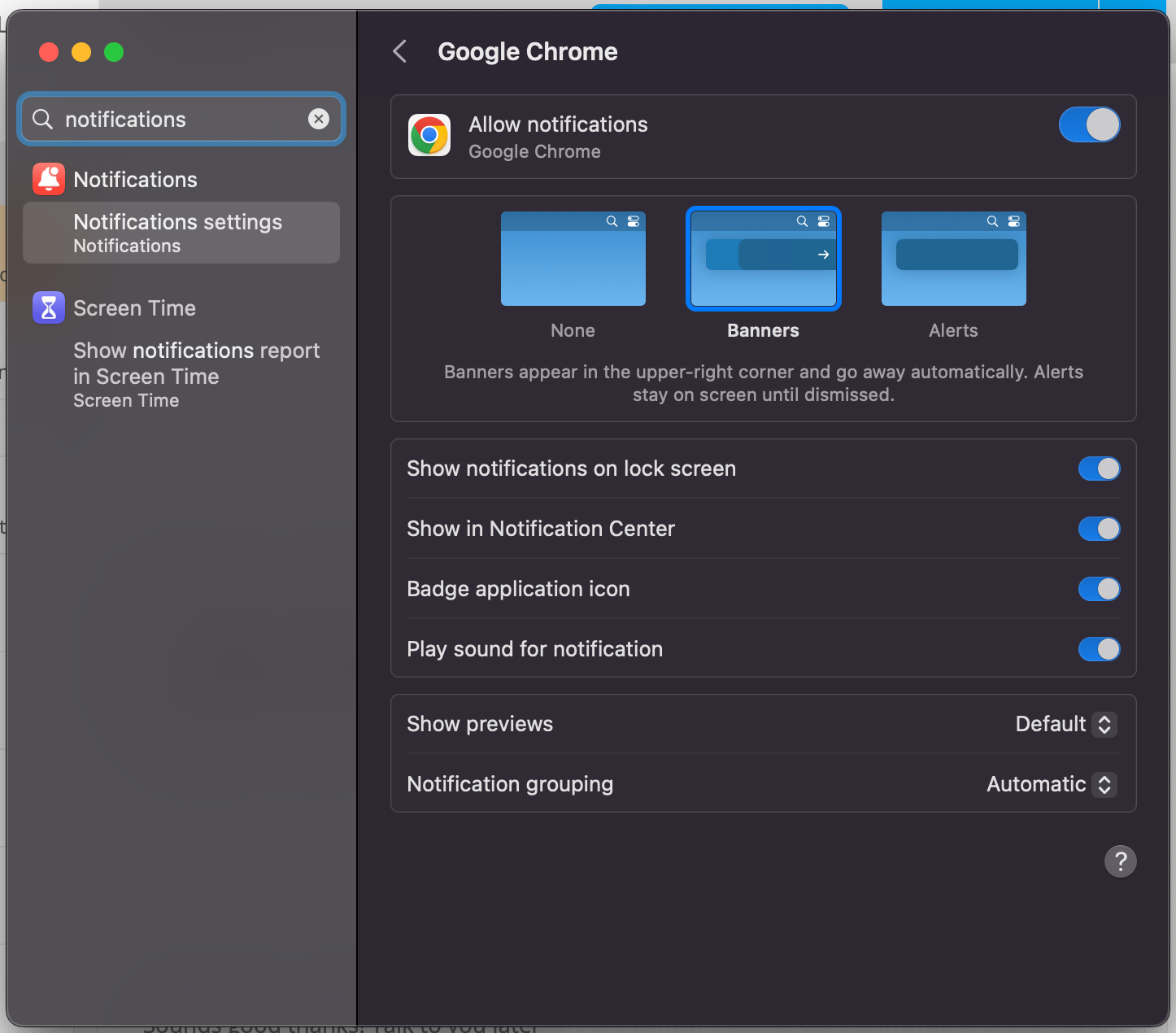
Be sure to disable "Do Not Disturb" settings in the Notifications Center.
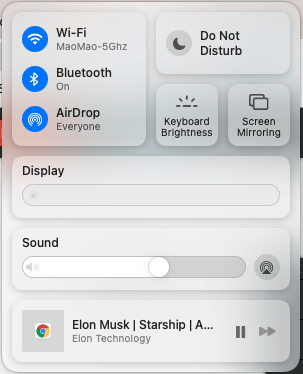
In your 'Systems Settings' (click on the Apple icon at the top left), search 'notifications'. Go to Google Chrome (or whichever browser you are using), and make sure "Allow notifications" is enabled.
4. Check your Google Chrome settings
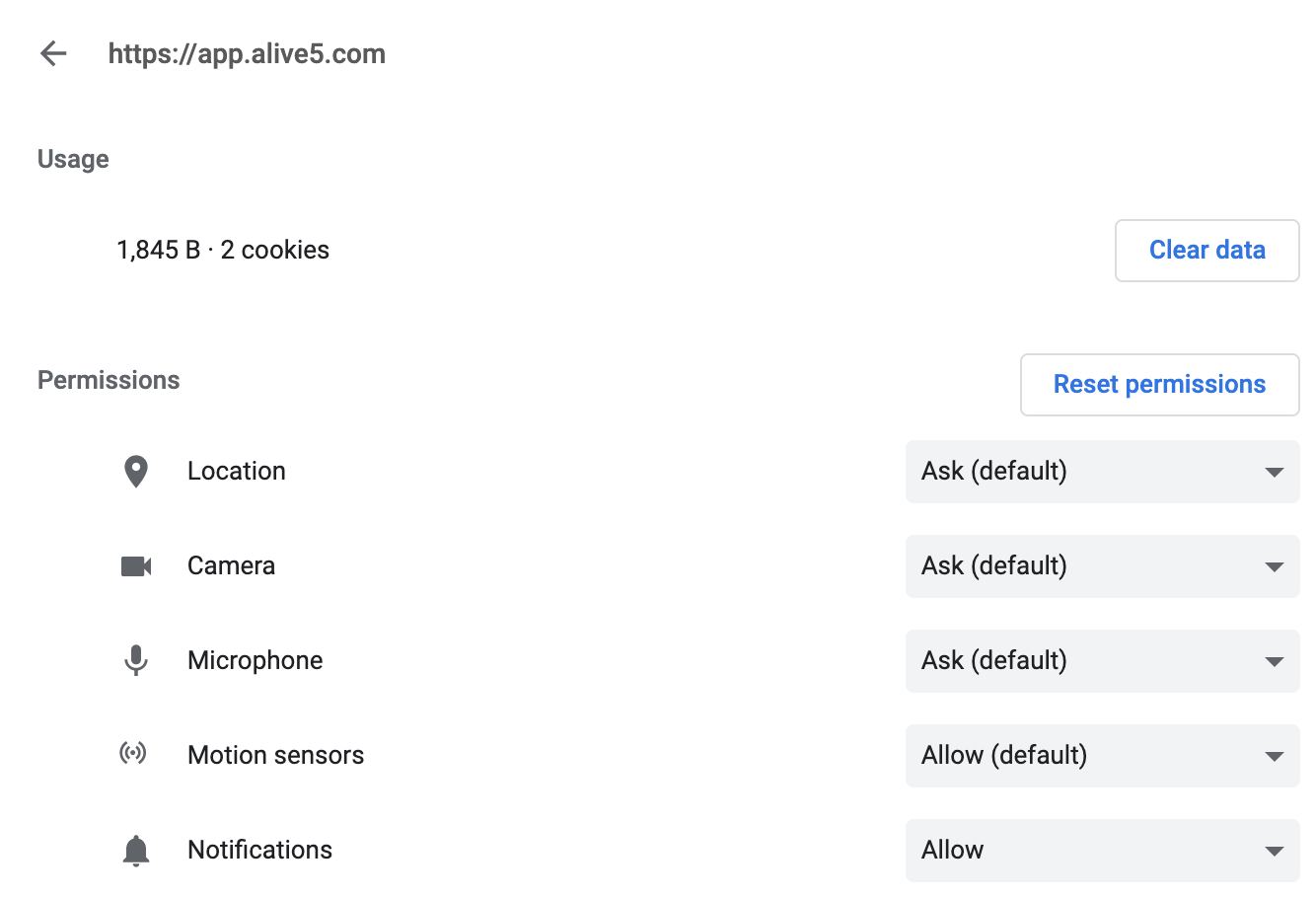
While you can use any modern browser, we recommend Google Chrome. These type of settings should be similar to other browsers. In your Chrome browser, type 'chrome://settings/content/notifications?search=notifications' in your address bar.
Look for the App ' https://app.alive5.com '. Make sure for Notifications the setting is set to 'Allow'.
5. Clearing your browser cache
Clearing your Google Chrome/Microsoft Edge/Mac Safari/Mozilla Firefox browser cache may help resolve some of these issues.
💡 Watch this Video:
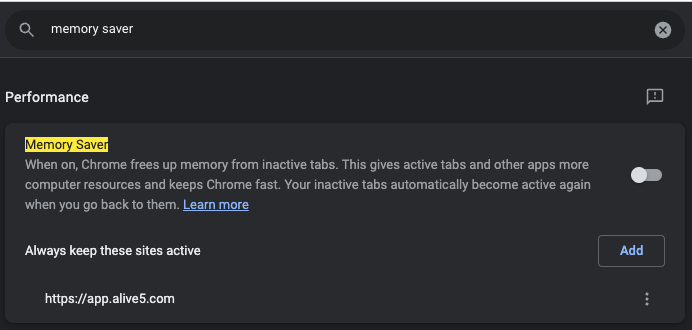
Configure Memory Saver Settings
In your Chrome browser, type: 'chrome://settings/?search=memory+saver'. Be sure to add 'https://app.alive5.com' under the section 'Always keep these sites active':
Mobile app notifications issues
A quick way to resolve is to simply delete the mobile app and reinstall on your phone. You’ll get a prompt to enable or disable notifications.
That's It! You should be able to receive pop up notifications after completing the above steps.